How to use YTBooks
Three short steps from “just watching” to a notebook you’ll actually come back to. Here’s exactly what it looks like.
Mark the moments that matter
Open any YouTube video. YTBooks adds an “+ Add chapter” button right on the player — sign in to your free account to get started.
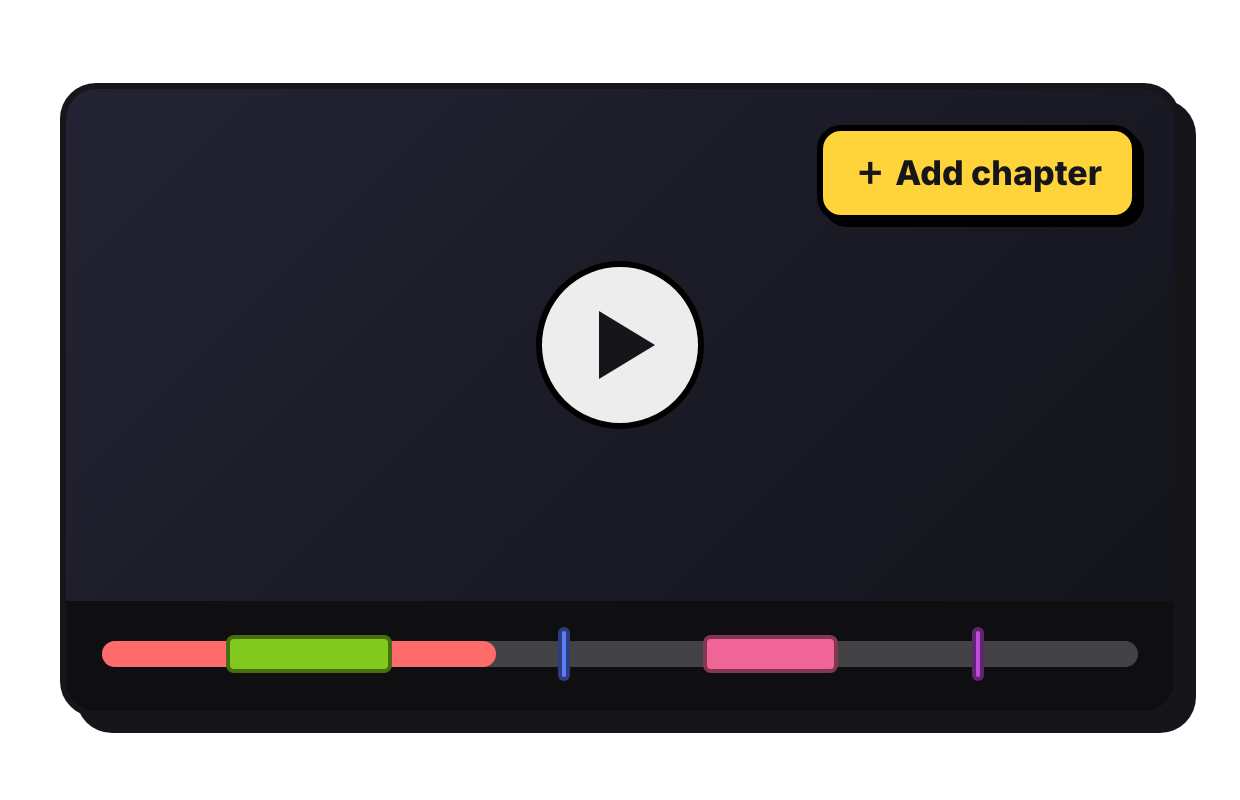
Click + Add chapter on the player the moment something’s worth keeping.
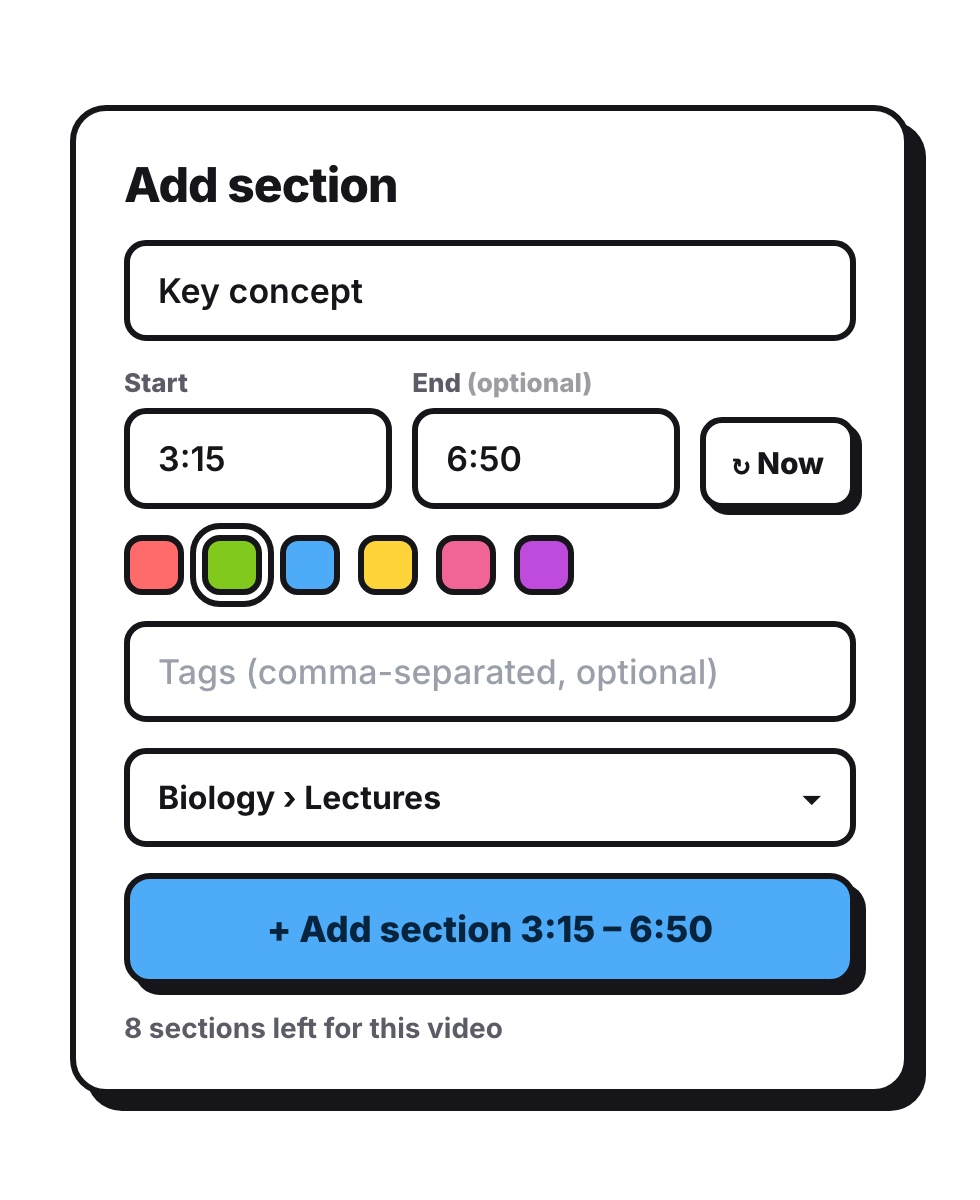
A quick popup opens. Name it, set a Start (or hit ↻ Now), add an End to capture a whole section, then pick a color and a folder and press Add.
Your chapters and sections appear right on the scrubber, color-coded — so you can see the shape of the whole video at a glance.

Turn timestamps into notes
Every chapter becomes a card. Click its timestamp to jump straight back to that exact moment in the video.

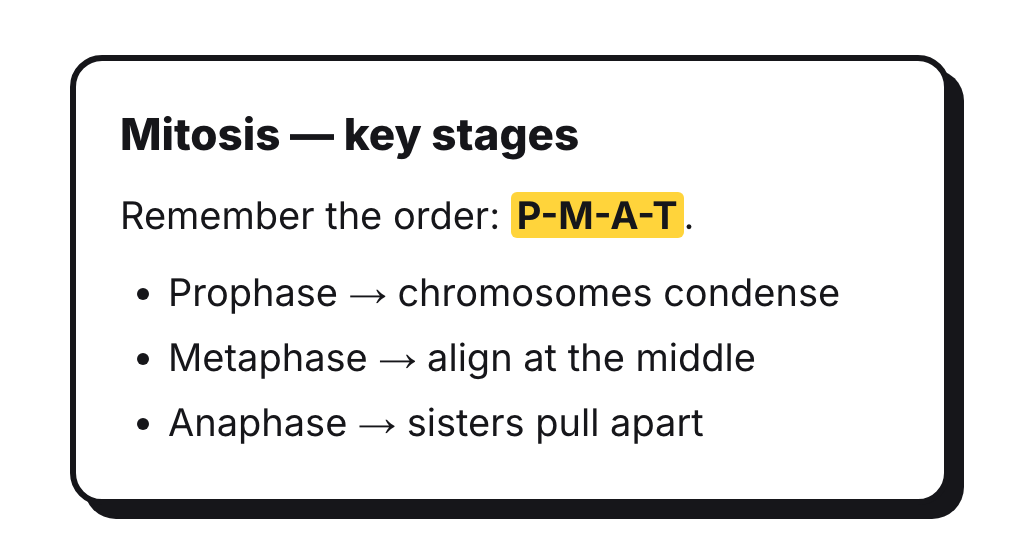
Write rich notes — headings, bold, and lists — on any section, or as standalone notes that live beside the video.
Group it the way you think
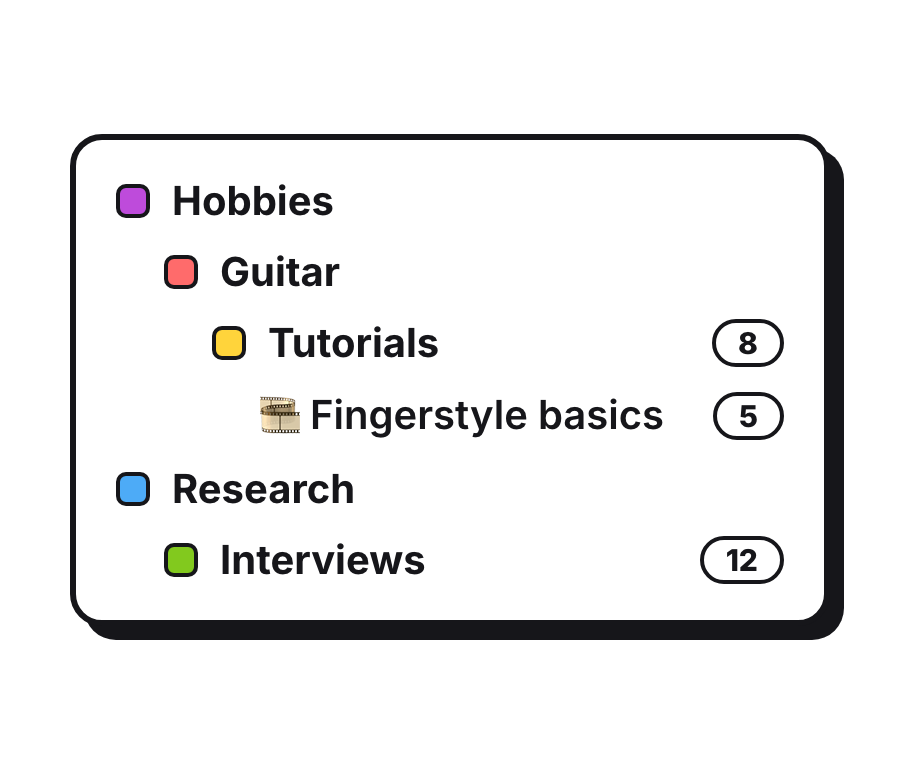
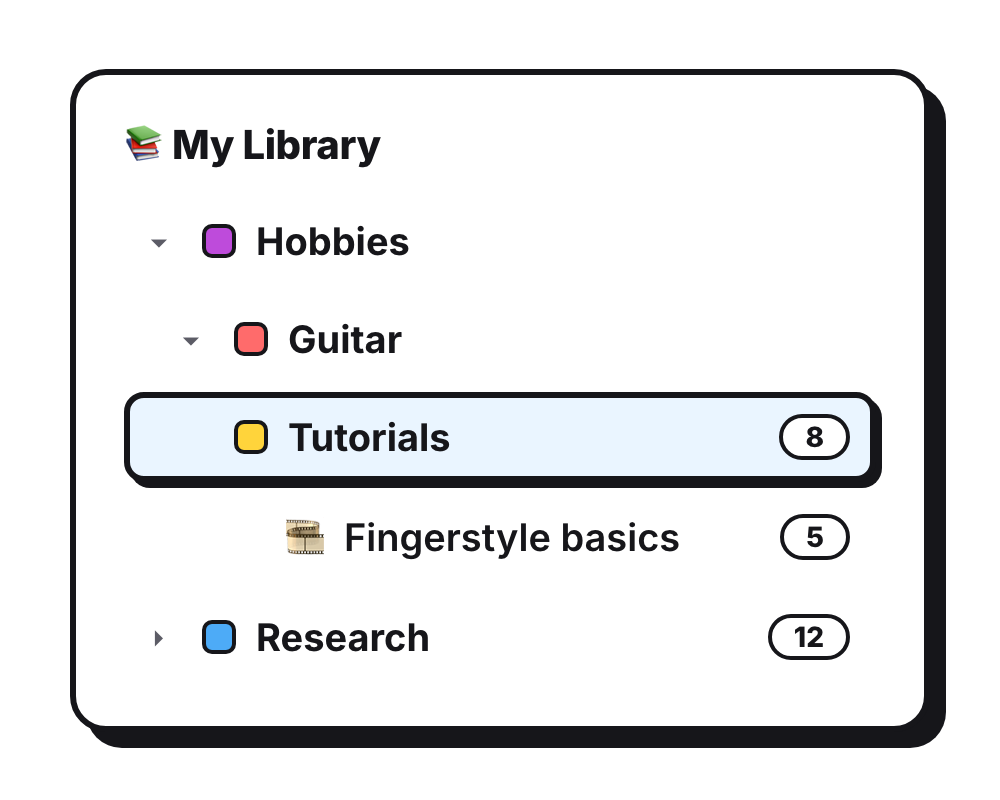
Sort chapters and notes from many videos into nested folders — Hobbies › Guitar › Tutorials — and reorder them however you work.
Reopen your saved data anytime
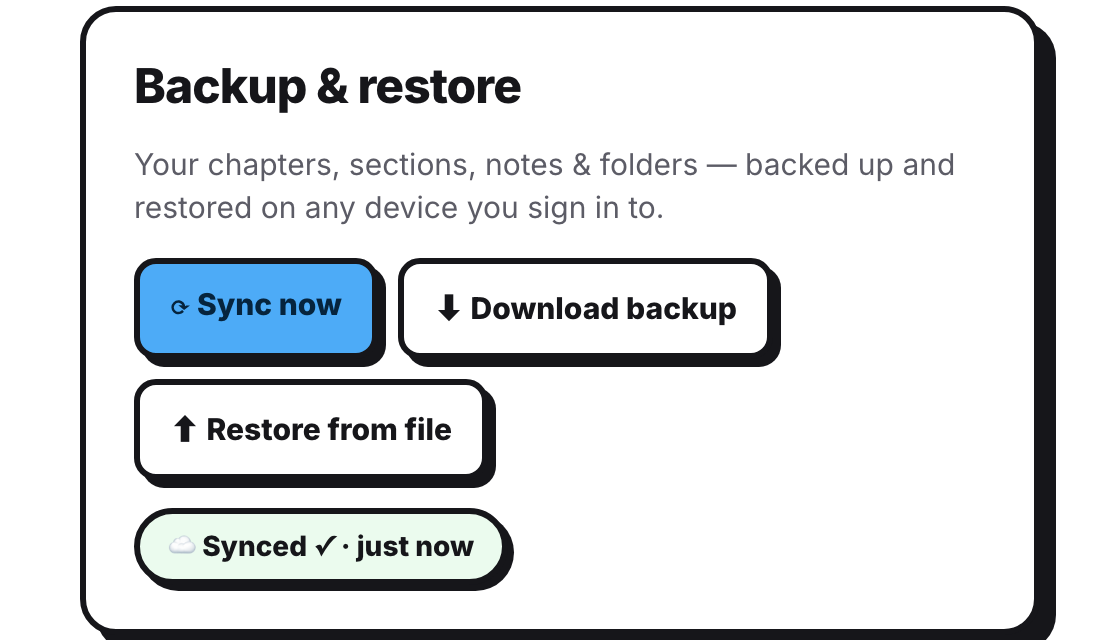
Your work saves as you go. Premium backs it up to the cloud automatically; everyone can download a backup file — or restore from one — for free.
Sign back in on any device and your whole library comes back — browse it as a tidy tree of folders, videos, and notes, right where you left off. Premium can open it all at yt-books.com/notes too.
That’s it — you’re ready
Add it to Chrome and start your first notebook in under a minute. Premium users can read everything on the big screen, too.